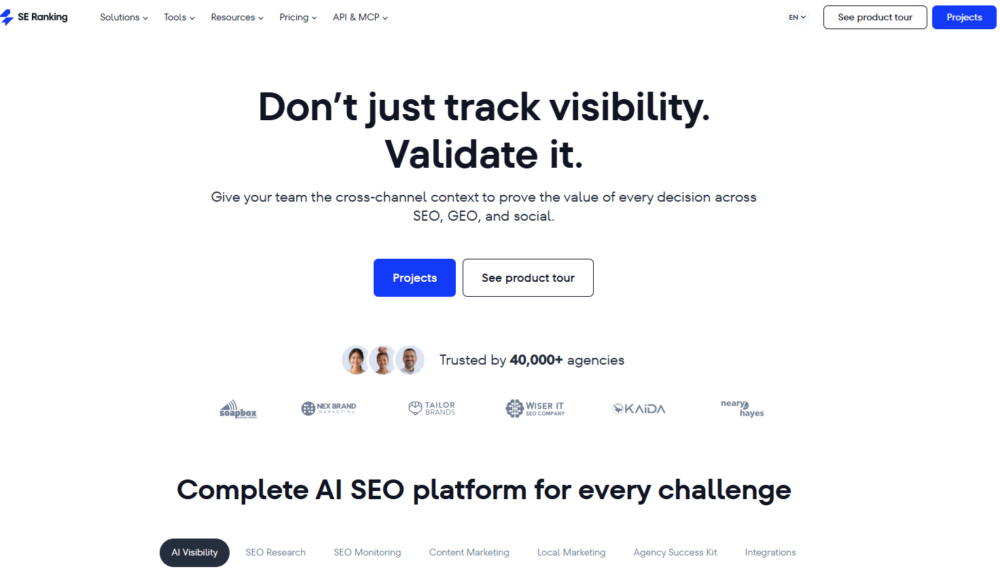
Every SEO specialist deals daily with a set of standard but essential tasks: technical audits, competitor analysis, keyword research, backlink analysis and selection, rank tracking, and more. And of course, the market has well-known tools that handle these tasks quite well. For example, Ahrefs is traditionally strong in backlink analysis, competitor research, and keyword research, while Semrush offers a very broad set of tools not only for SEO but also for PPC research, content marketing, and competitive intelligence. In this article, I’ll tell you about SE Ranking, a tool that combines everyday SEO tasks in one platform, from rank tracking and keyword research to technical audits, competitor analysis, backlink monitoring, and SEO reporting.
What Is SE Ranking?
SE Ranking is an SEO platform that brings together all the tools you need to promote a website in search. It suits SEO beginners and seasoned experts alike. The platform includes more than 30 useful tools to help SEO specialists, marketers, and business owners. The service can be useful at every stage, from launch and forecasting to getting a site into top positions.
On SE Ranking, you will find tools for website analysis, competitor monitoring, rank checking, keyword research, backlink monitoring, as well as automated and professional reporting. In addition to the standard set of SEO tools, there are a number of extra features, such as an affiliate program, white-label reports, and a website promotion plan.
So let’s go to the platform itself and look at everything in order.
What You Can Do with SE Ranking: Core Features
How to Create a Project in SE Ranking
First, if you plan to work on a website over the long term, it is best to set up a dedicated project for it in SE Ranking. That way, you can quickly assess how well the work is going and analyze your metrics using charts and tables. However, if you only need to complete a one-off task, such as analyzing a single keyword, you can do it without creating a project.
To add a site to SE Ranking, click the “Create project” button. On the “General information” page, we need to add our website and give the project a name. You also specify the website address, the domain type (domain with subdomains, without subdomains, or a specific URL), and the project name, which is how it will appear in your project list.
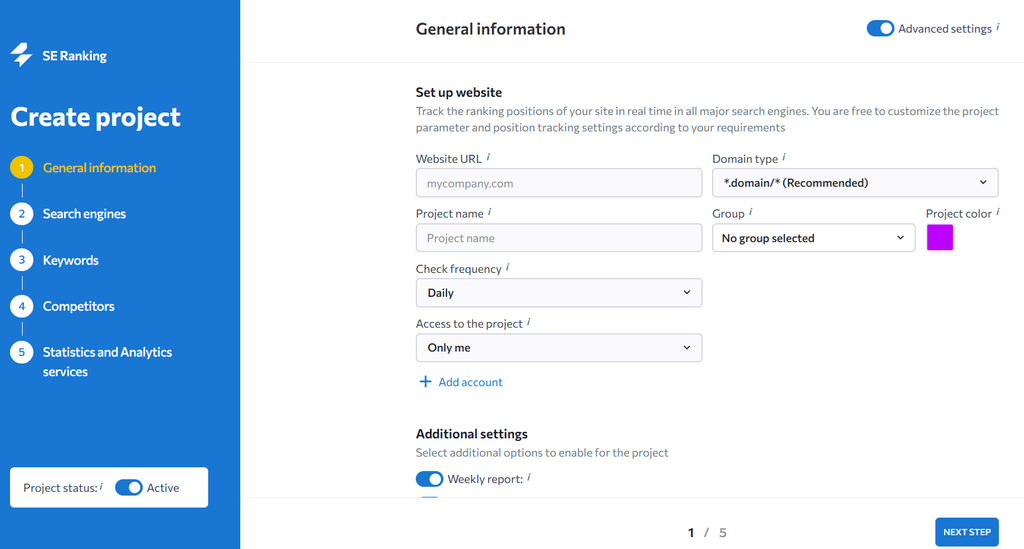
For convenience, projects can be combined into groups, for example by client or by the specialists who work on them. At this stage, you can also choose how often positions are checked and set additional options, namely whether to run an audit and a backlink analysis.
It is worth noting that you can give client accounts access to a project so they can view all the data themselves. You can also open shared access to a project, in which case your co-authors will be able to edit the project information.
The next step is to configure the search engines in which the site will be tracked. First, select the search engine, location, and language for keyword tracking. You can also enable paid ads tracking and Google Local Pack tracking.
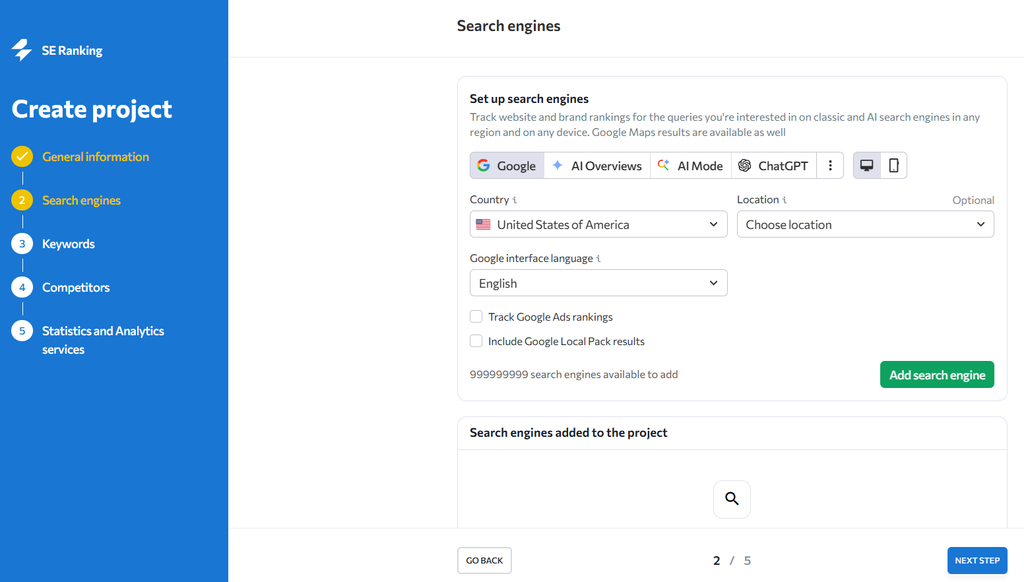
For an additional fee, you can also enable tracking of company mentions in Google AI Overview, ChatGPT, and other AI chatbots.
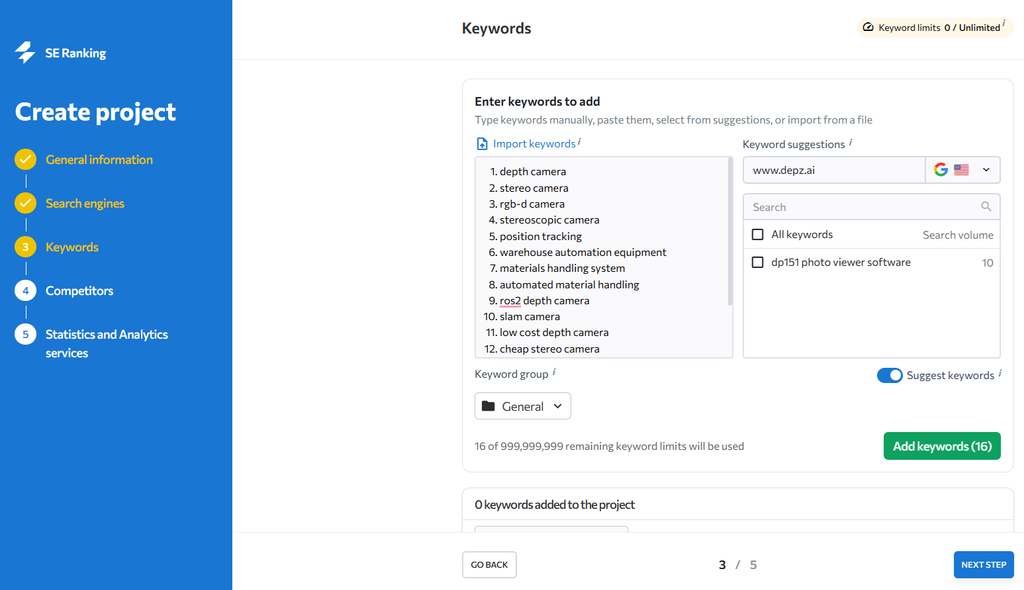
In the next step, we add keywords to the project. You can add them manually or import them from Google Analytics or from a CSV/XLS file. If you don’t know which keywords to add, or you want to expand your existing list, use the keyword suggestion feature: the service will return a list of queries your site already ranks for in Google.
In the fourth step, the service offers to add competitors. You can add up to 5 competitor websites and track their positions for the queries you added for your own site. Competitor positions are collected together with yours at no extra cost.
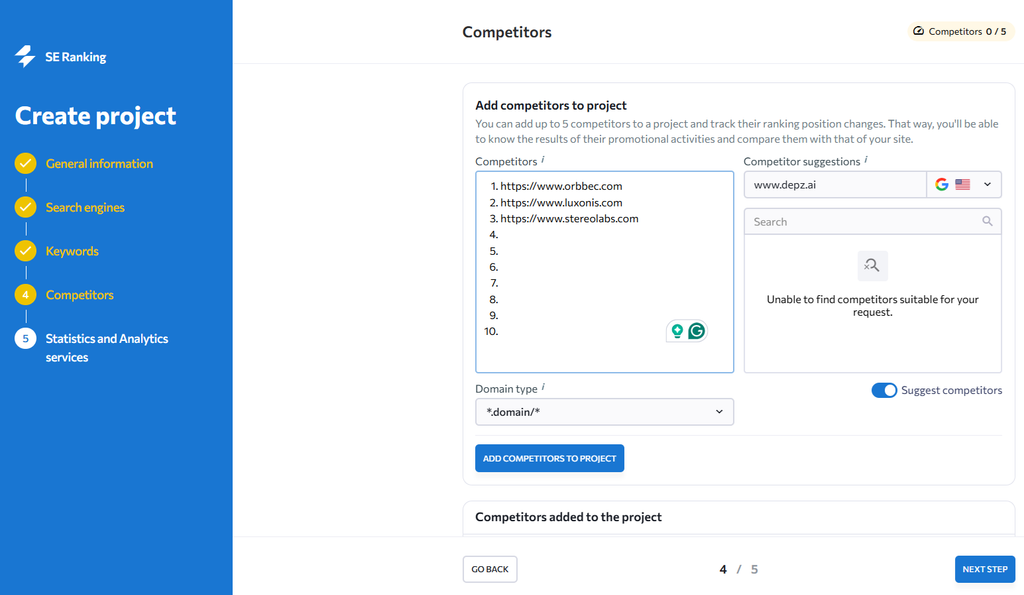
If you know your competitors, you can add them manually; if not, use the “Competitor suggestions” function. The service will analyze the keywords your site ranks for in search results and suggest a list of competitors.
In the last step of project setup, you can connect Google Analytics and Google Search Console. Once these services are connected, you no longer need to switch between browser tabs, because all the necessary analytics will be available in your SE Ranking account.
How to Monitor Website Positions in SE Ranking
Once the project for your website has been created, you can start working on it. Let’s begin with a feature in which SE Ranking is traditionally strong, and where the service largely began: tracking a website’s positions for given keywords. To open the project, find it in the project list and click the “Rankings” button. In this section, you will find the list of keywords you added to the project, with the position for each one over time. Positions can be filtered by top 1, top 3, top 5, top 10, and so on. Here you can see which positions have risen or fallen.
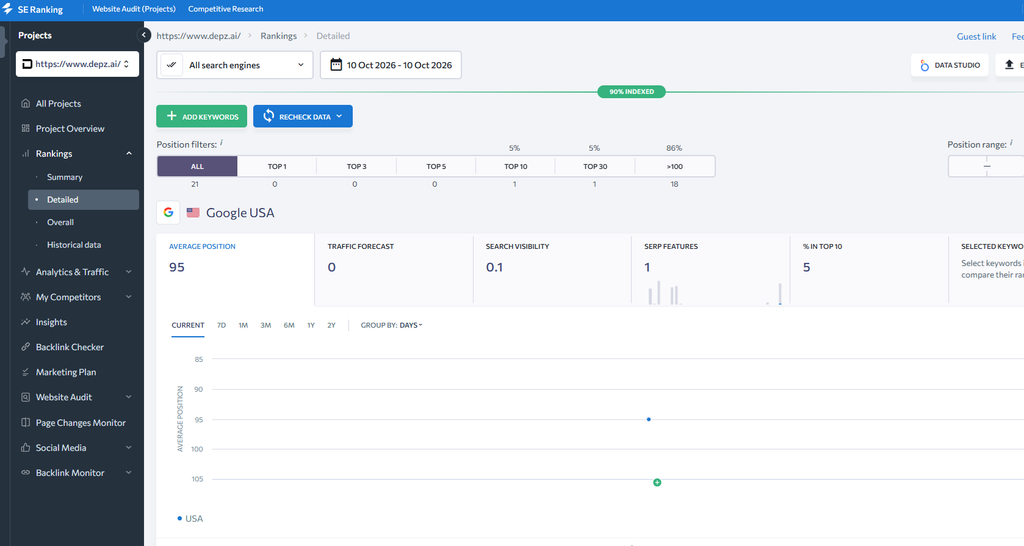
In the calendar at the top, you can select a time range or individual dates for analysis.
In the keyword table, besides the positions themselves, you can see parameters for each keyword. By default, only search volume and SERP Features are shown. But you can add columns with other keyword parameters, including CPC, competition level, traffic potential, and more. To do this, click the “Columns” button in the top right corner of the table and select the parameters you want to add. Next to each parameter, a hint describes it and explains how to read it.
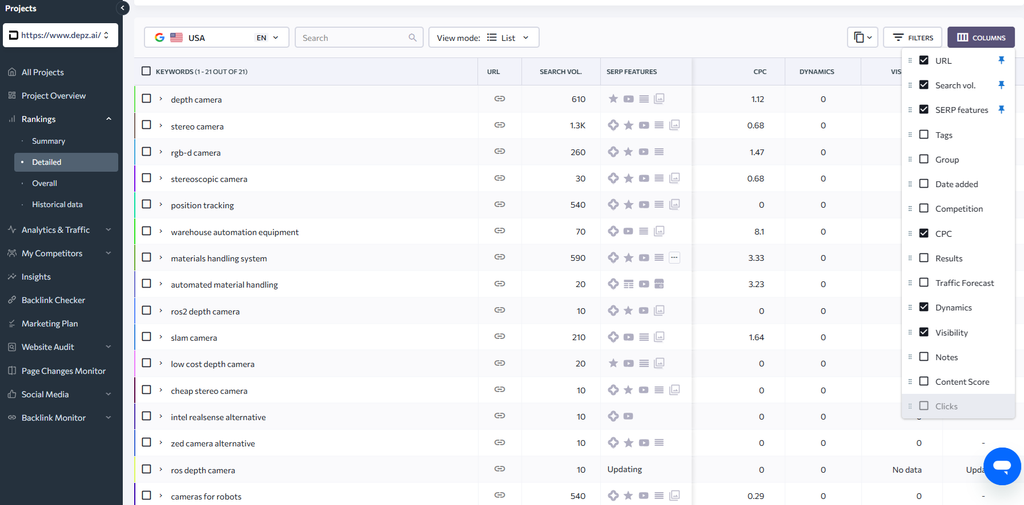
I would like to spend a moment on the SERP Features metric. It shows the special elements in the search results and helps you understand which element is best to optimize your site for. SE Ranking shows which elements appear in the search results for each query and highlights in blue the block your site appears in. If you know that a query triggers a featured snippet, you can optimize the page content to get into that block. All of these elements can affect traffic, so it is very important to track which special elements Google assigned to your site and for which query. In total, the system shows 16 special elements.
Clicking a keyword opens a chart showing the dynamics of its positions. You can select a period in the calendar and group the data by day, week, or month to assess how well or poorly the site is performing for the query.
When checking a position, it is important to know not only which place your site takes in the results but also which page of your site the search engine returns for that query. The service lets you add target URLs to a query or choose links from a suggested list. This can be done for one keyword or for several at once.
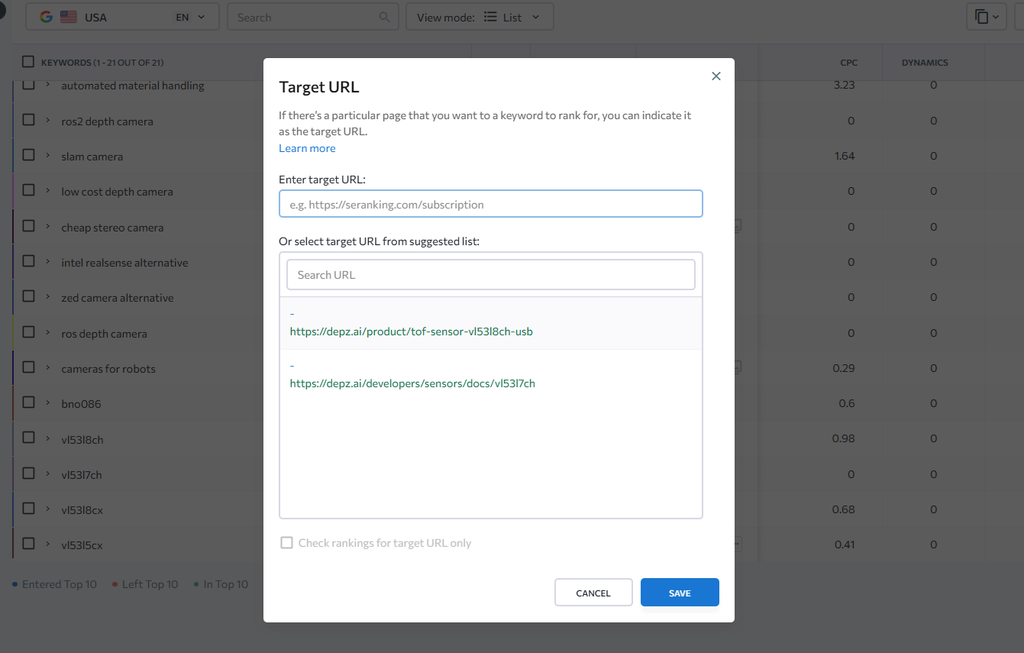
You can also choose to check positions only for the specified target URL. If another page of the site ranks for the query, or a page that ranks higher than the specified one, the tool will not show it in the data. Alternatively, you can leave this option off. In that case, it is important to understand which page ranks: the one you set, or a different one. If it is a different one, the result in the table is highlighted in red. If the page ranking for a keyword has changed, a red number appears next to the link icon. By clicking the icon next to the number, you will see the pages that were returned for that query. This situation means that several of your pages compete in the results for the same query. In that case, you need to remove one of the pages or de-optimize it. The decision on what to do should be based on all the available data.
To find out which page appears for your keyword, click the position result. In the window that opens, you can view a saved copy of the results. A saved copy is a snapshot of the search engine results page on the day of the check, confirming the exact data. You can also view the current result here.
Queries in the table can be viewed in different modes: as a list, groups, tags, or by URL. Data can be exported to an Excel or CSV file using the Export option.
With the “Recheck Data” option, you can run a ranking check without waiting for the automatic one. When you start a check manually, you can select the specific keywords whose rankings you want to check. You can update search volume the same way. Note that search volume is not updated automatically, so it is worth running the volume collection manually once a month.
How to Build a Semantic Core: Keyword Research with SE Ranking
Keyword research and building a semantic core are fundamental SEO activities, and your website’s promotional success depends heavily on them. In this regard, SE Ranking, although slightly behind Ahrefs and Semrush, is still a decent alternative. In the SE Ranking keyword research tool, you can enter several keywords or upload a file of keywords to get summary data for all of them at once.
After the keyword analysis is complete, you will find a detailed report for the analyzed keyword (or keywords), covering both organic and paid search.
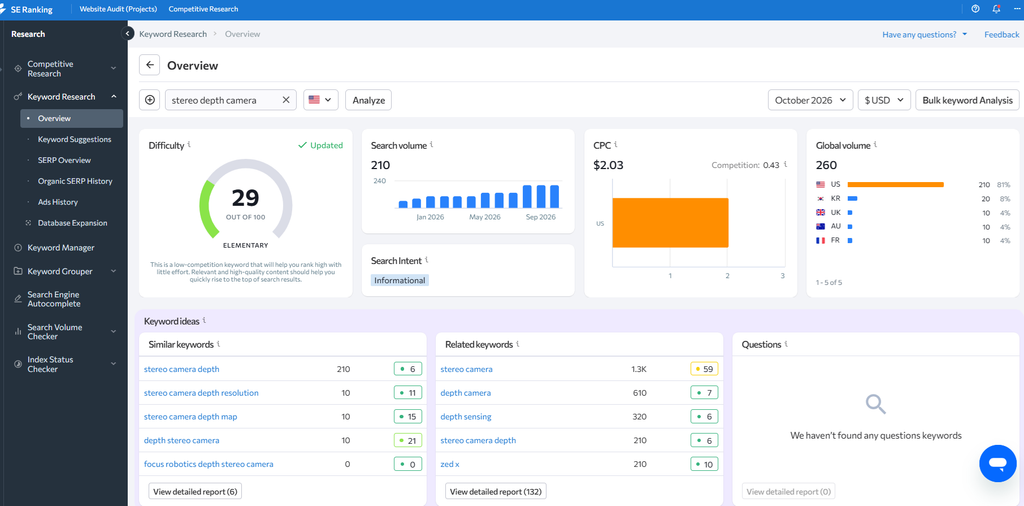
On the “Overview” tab, you will find the main keyword metrics, including search volume and keyword difficulty, to help you prioritize your website promotion. You can also see a seasonal trends chart, global search volume, the intent of users who enter this keyword, and the type of content they expect to see.
Paid advertising statistics are also available: the estimated cost per click in Google Ads and the ad competition for this keyword. Note that the tool lets you view historical keyword data. Most of the data comes from Google Keyword Planner.
In this section, you can also find many new keyword ideas for your website and see the sites that rank in the top results for the keyword you are interested in. In particular, on the “Keyword Suggestions” tab you can see a list of keywords similar to the one you entered, which helps you build a semantic core or expand an existing one.
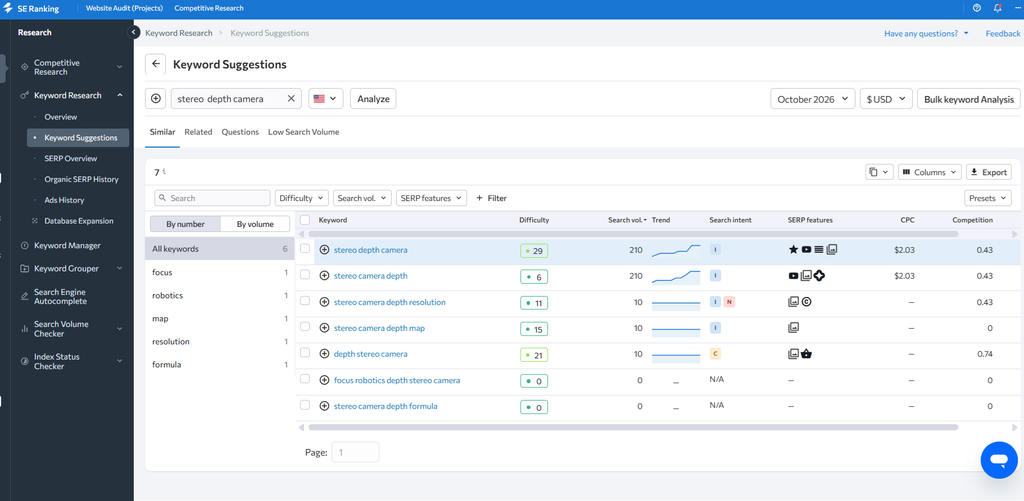
Next to each keyword, you will see a list of the main parameters that help you decide whether the keyword is worth using, namely keyword difficulty, search volume, cost per click, and competition.
On the “SERP Overview” tab, you will see up to the top 100 organic search results for the analyzed keyword, together with relevant traffic and backlink data.
On the “Google Ads History” tab, you can find websites that use the analyzed keyword in their Google Ads campaigns, along with their forecasted paid traffic, estimated monthly traffic cost, the total number of keywords they rank for in paid search, and an ad preview. Click the “Expand ads” button to see all ads by month, as well as their text.
How to Analyze Competitors with SE Ranking
Speaking of competitors, you cannot overlook the competitor analysis tool. It is a separate but very useful tool that sits outside of projects.
To get started, enter the address of your site or a competitor’s site. Then choose the mode: “Analyze domain with subdomains”, “Domain only,” or “Single URL”, as well as the search engine and the region for analysis. The analysis produces a report with key information to evaluate the site’s organic and paid traffic, organic and paid keywords, position distribution, competitors, semantic comparisons with competitors, popular pages and subdomains, and more. If needed, you can study each block in detail and view more information.
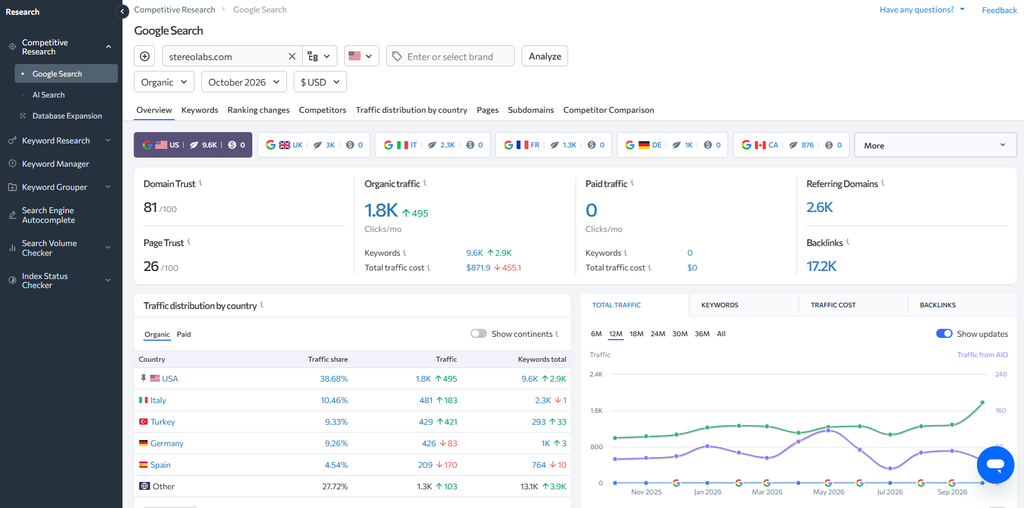
If you enter a keyword into the tool, you will find a list of similar queries that you can use to create or expand a semantic core, as well as the sites that use this query in organic and paid results.
How to Analyze Competitor Backlinks with SE Ranking
SE Ranking also has a separate tool for analyzing the backlinks of competitors (or of your own site).
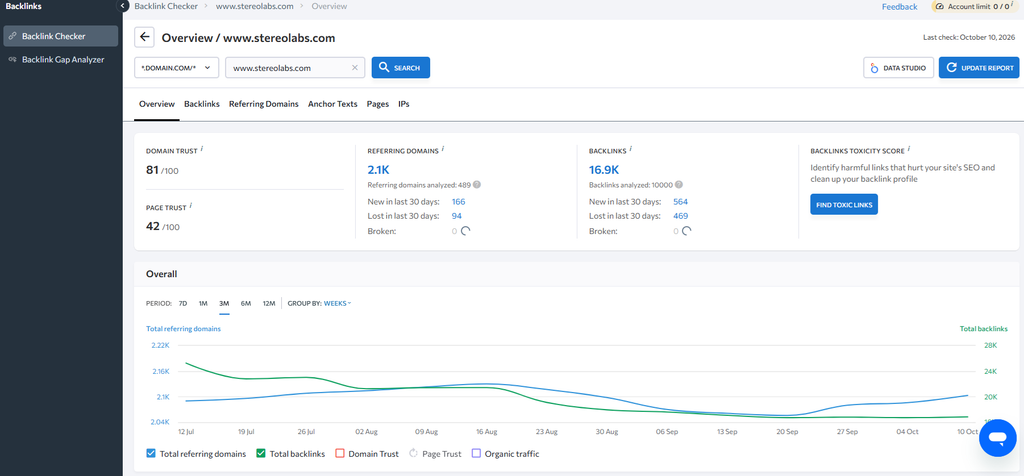
Here you will find all the necessary information about the backlinks pointing to a given site: referring domains, the pages the links come from along with their metrics, anchors, the pages the links point to, and more.
There is also a separate tool, Backlink Gap Analyzer, which lets you compare your site’s backlink profile with those of your competitors. This gives you a list of sites that link to your competitors but not to your site, so you can later try to get a link to your site placed on them.
How to Run a Technical Audit with SE Ranking
Technical errors often keep a site from climbing to the top. The website audit in SE Ranking shows how well the site is optimized for search engines. If errors are found, then depending on the selected settings, SE Ranking can analyze your site automatically or manually after you start a check. If necessary, you can restart the audit at any time.
Of course, in the age of AI, running a technical site audit has become much easier with Claude, and frankly, with quality input data and a good prompt, it does an excellent job. Nevertheless, if you have chosen SE Ranking as the single hub for your SEO activities, it is much more convenient to run the audit within the platform.
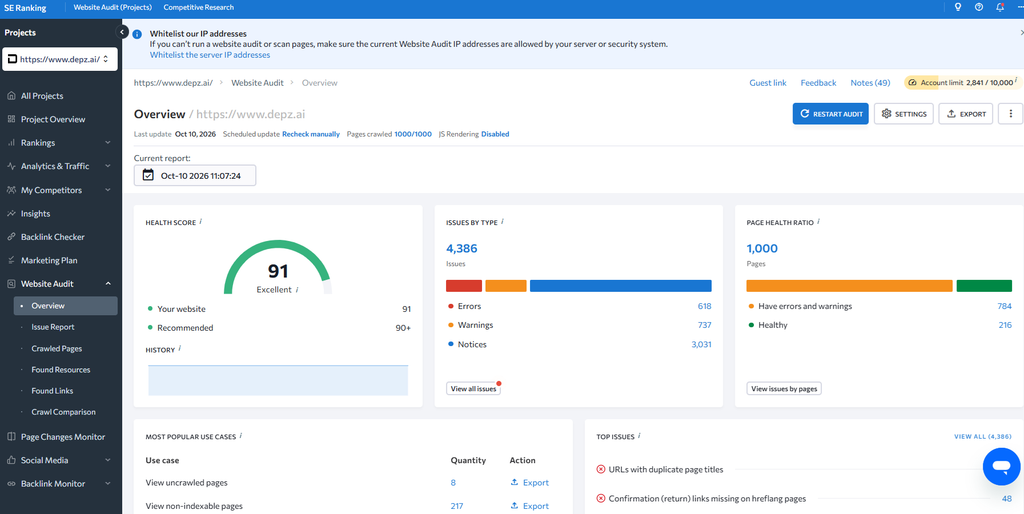
By the way, after the audit, SE Ranking generates a full report of dozens of pages with the problems found and recommendations, which you can then send to a client or use when working on corporate or personal websites.
Additional SE Ranking Features
Above, I described only the main functions of the SE Ranking platform that most SEO specialists will find interesting. However, as I mentioned, the platform is a full SEO hub, a Swiss Army knife for the SEO specialist, if you like, so there is, in fact, a lot of useful functionality.
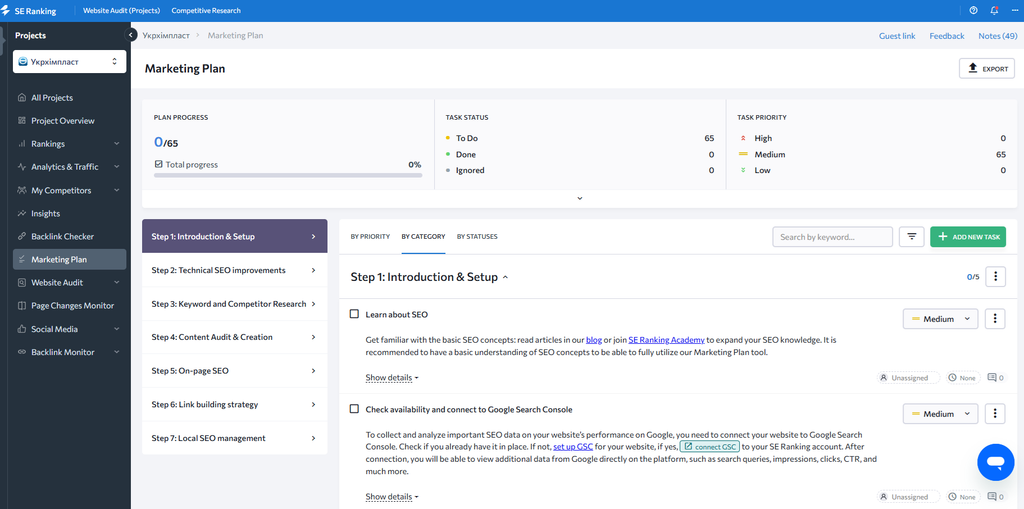
For example, SE Ranking has a feature called “Marketing Plan”. It is a checklist of recommended steps to consider when creating and optimizing a site. If you are an experienced specialist, you can use it for yourself as a plan for next actions. If you work with clients, you can present this checklist to a client as a work plan for their website: each step explains how to complete the task and why it matters for the site. You can also find links to useful articles on the topic here. As you go through the optimization steps, mark completed tasks. This helps you keep track of finished work and lets your client see the progress on the project.
SE Ranking also has a number of tools for local SEO, content marketing and social media promotion. As I mentioned, tools for monitoring mentions and promoting a company in AI chatbots are also available for an additional fee.
How Much Does SE Ranking Cost?
If you look at the price of the standard SE Ranking packages, you will notice that they are slightly cheaper than comparable Ahrefs and Semrush packages.
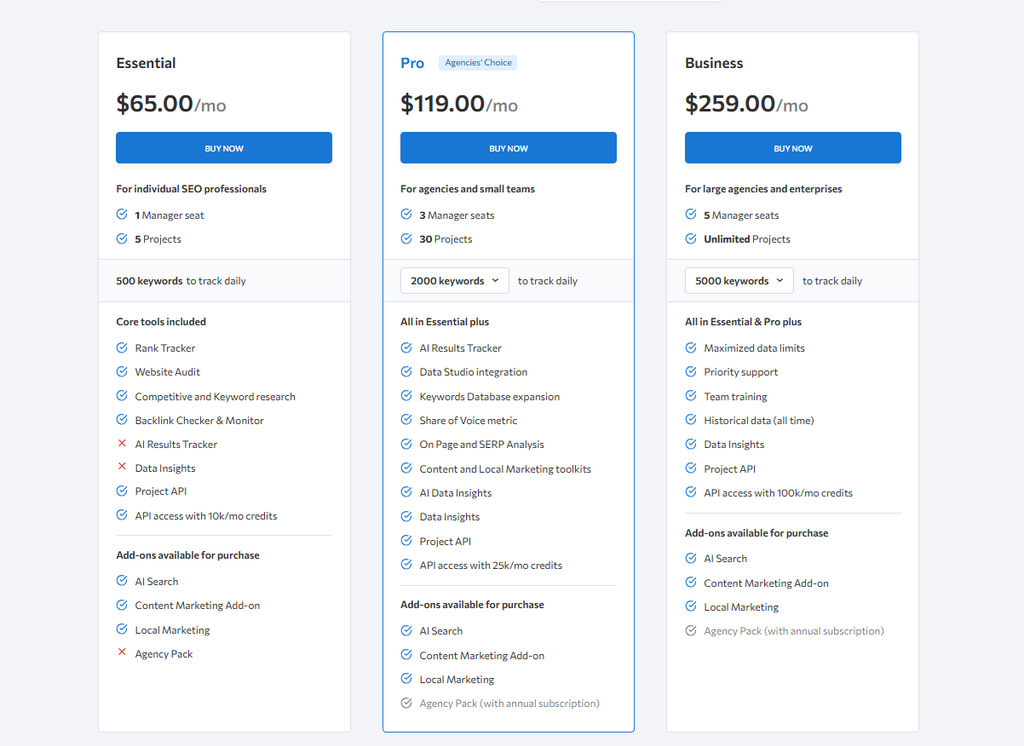
Some additional functionality is also paid separately. Some custom plans are available too, in particular for agencies.
SE Ranking vs Ahrefs vs Semrush Comparison
| Criteria | SE Ranking Pro | Ahrefs Standard | Semrush Pro+ |
|---|---|---|---|
| Monthly price | $119 | $249 | $299 |
| Projects / websites | 30 | 20 unverified projects* | 15 |
| Tracked keywords | 2,000 | 2,000 | 1,500 |
| Rank tracking frequency | Daily | Weekly | Daily |
| Number of users | 3 | 1 included | 1 included |
| Historical data | Not specified | 2 years | Available |
| Website audit | Yes | Yes | Yes |
| Keyword research | Yes | Yes | Yes |
| Competitor analysis | Yes | Yes | Yes |
| Backlink analysis | Yes | Yes | Yes |
| On-page and SERP analysis | Yes | Depends on the specific tool | Yes |
| AI search visibility tracking | AI Results Tracker | 10 tracked AI prompts | 100 prompts per day |
| API access | 25,000 credits per month | Yes | Not included in Pro+ |
That covers all the main sections of the SE Ranking platform. If you still have questions, or you want to share your own experience of using SE Ranking, be sure to write in the comments.